A connector can hold more than one provider auth app. Each app is a credential on the connector, so you keep one Google connector or one Microsoft connector and choose which credential authenticates each user. Manage credentials in the Nylas Dashboard or with the Connector credentials API.
When to use multiple provider applications
Section titled “When to use multiple provider applications”Add a credential when users of the same provider need to authenticate through different provider auth apps:
- Customers who own their provider app. Some enterprise customers require their users to authenticate through their own Google Cloud project or Azure app registration. Add their app as a credential and authenticate their users with it.
- Separate apps per environment. Use different provider apps for development, staging, and production on one connector.
- Alongside the Nylas Google Shared App. If you use the Nylas Google Shared App, add your own Google Cloud project as a credential and route specific users through it.
How connectors and credentials work
Section titled “How connectors and credentials work”A connector represents one provider, such as Google or Microsoft, in your Nylas application. A credential is one provider auth app on that connector: a client_id and client_secret pair with its own credential_id.
- Every connector has a default credential. The first credential you add when you configure the connector becomes the default. The connector’s
active_credential_idfield holds the default credential’s ID. - New grants use the default credential unless the auth request names another
credential_id. - Each grant stays on the credential it authenticated with. Changing the default doesn’t move existing grants.
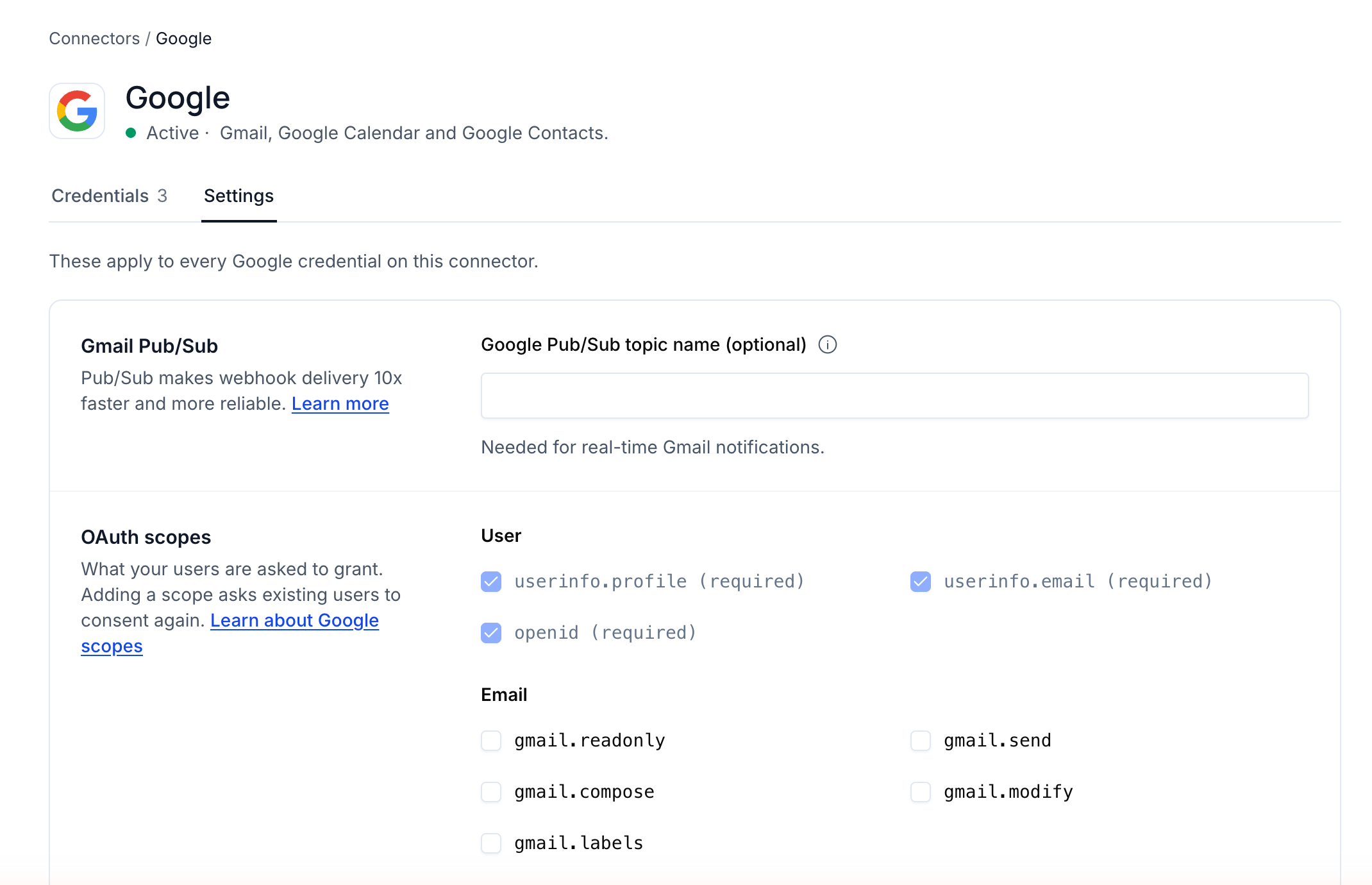
- Connector settings apply to every credential. Scopes, and the Pub/Sub topic for Google, are set once on the connector.
Add a credential in the Dashboard
Section titled “Add a credential in the Dashboard”Create the provider auth app first, or get the client ID and client secret from the customer who owns it. For the provider steps, see Creating a Google auth app or Creating an Azure auth app.
- In the Nylas Dashboard, open your application and select Connectors.
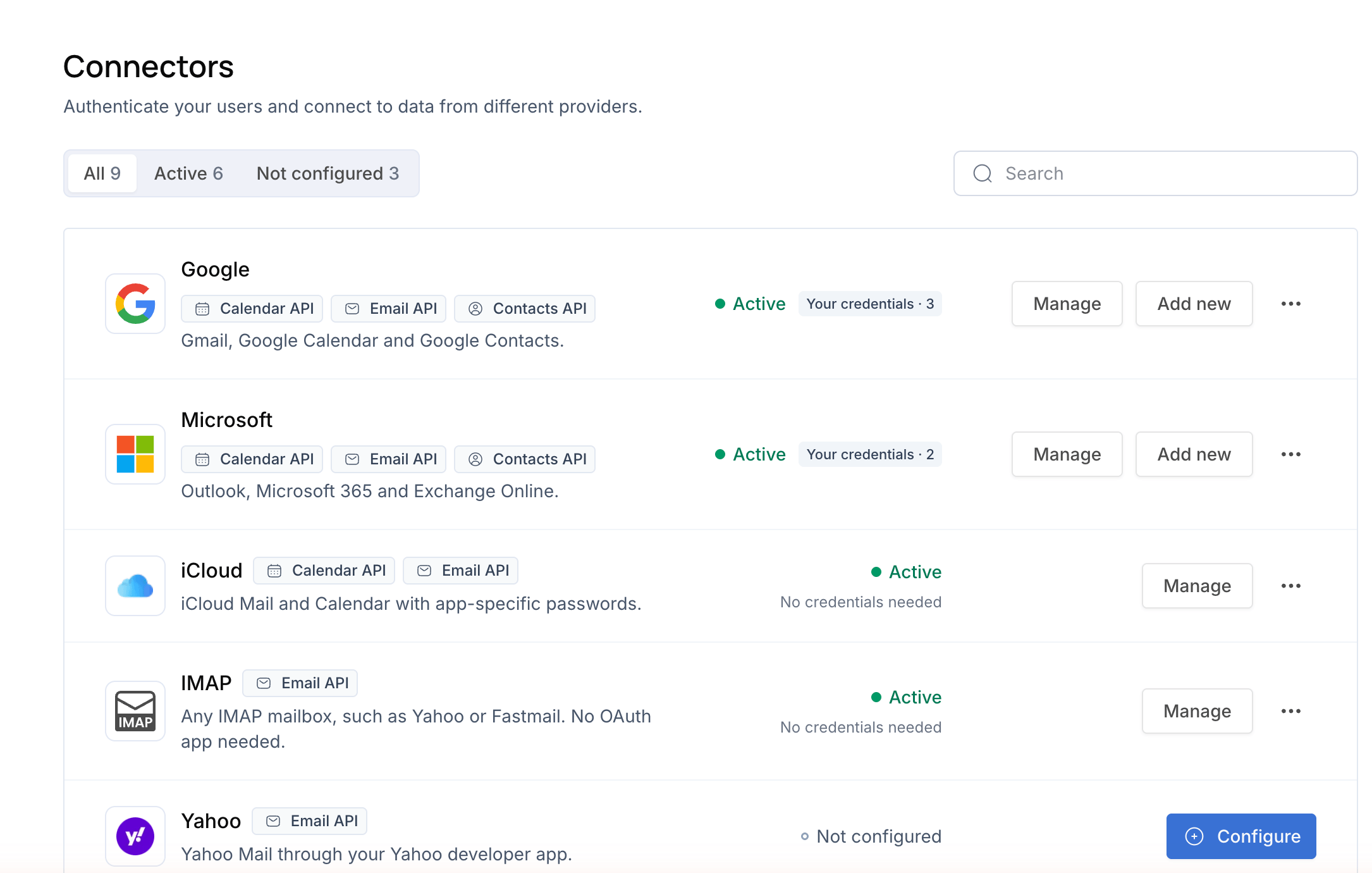
- In the provider’s row, click Manage, then click Add credential.
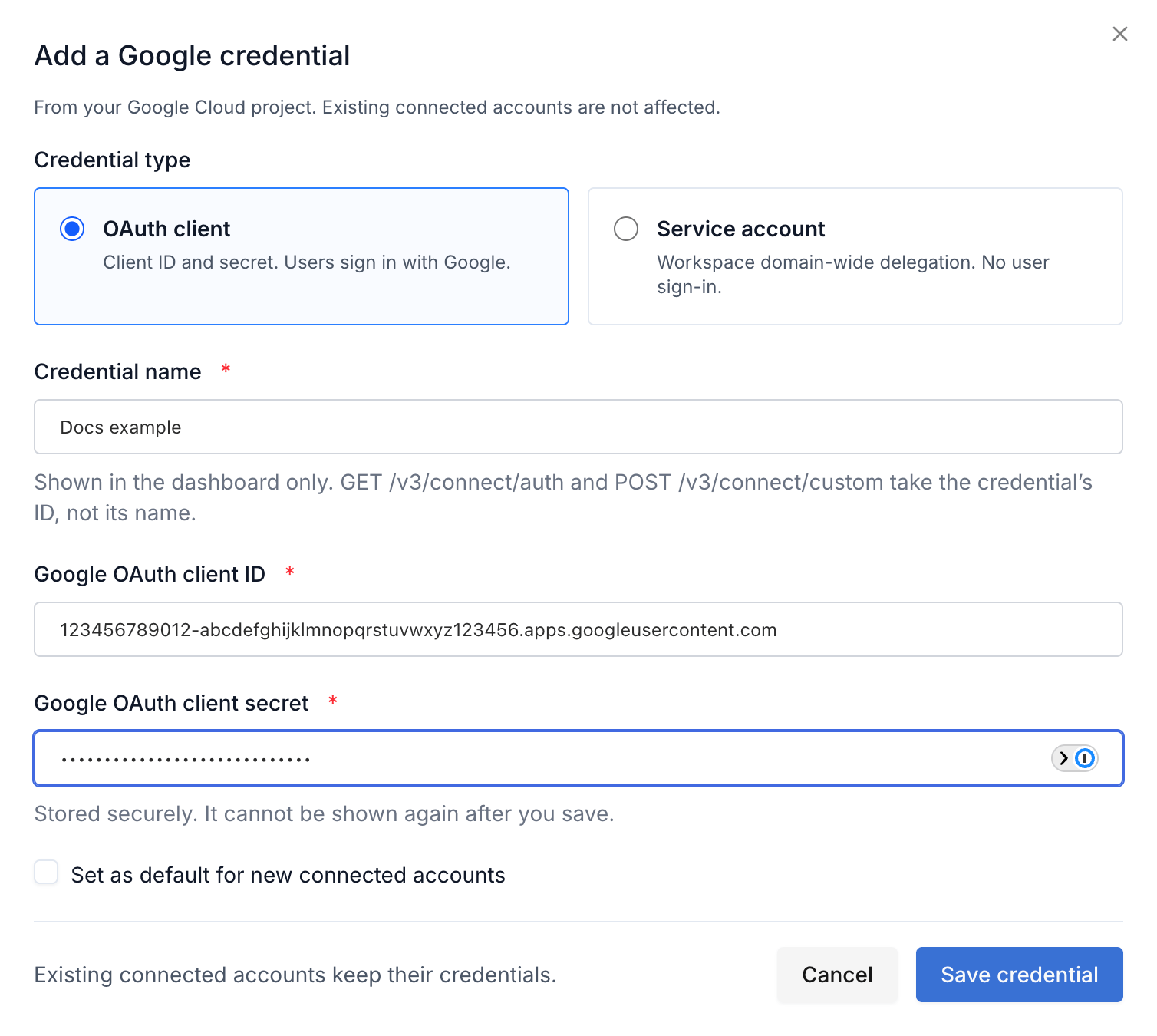
- Enter a Credential name. The Dashboard shows this name; API requests use the credential’s ID.
- Enter the client ID and client secret from the provider auth app. The Dashboard doesn’t show the secret again after you save.
- To make this the credential for new grants, select Set as default for new connected accounts.
- Click Save credential.
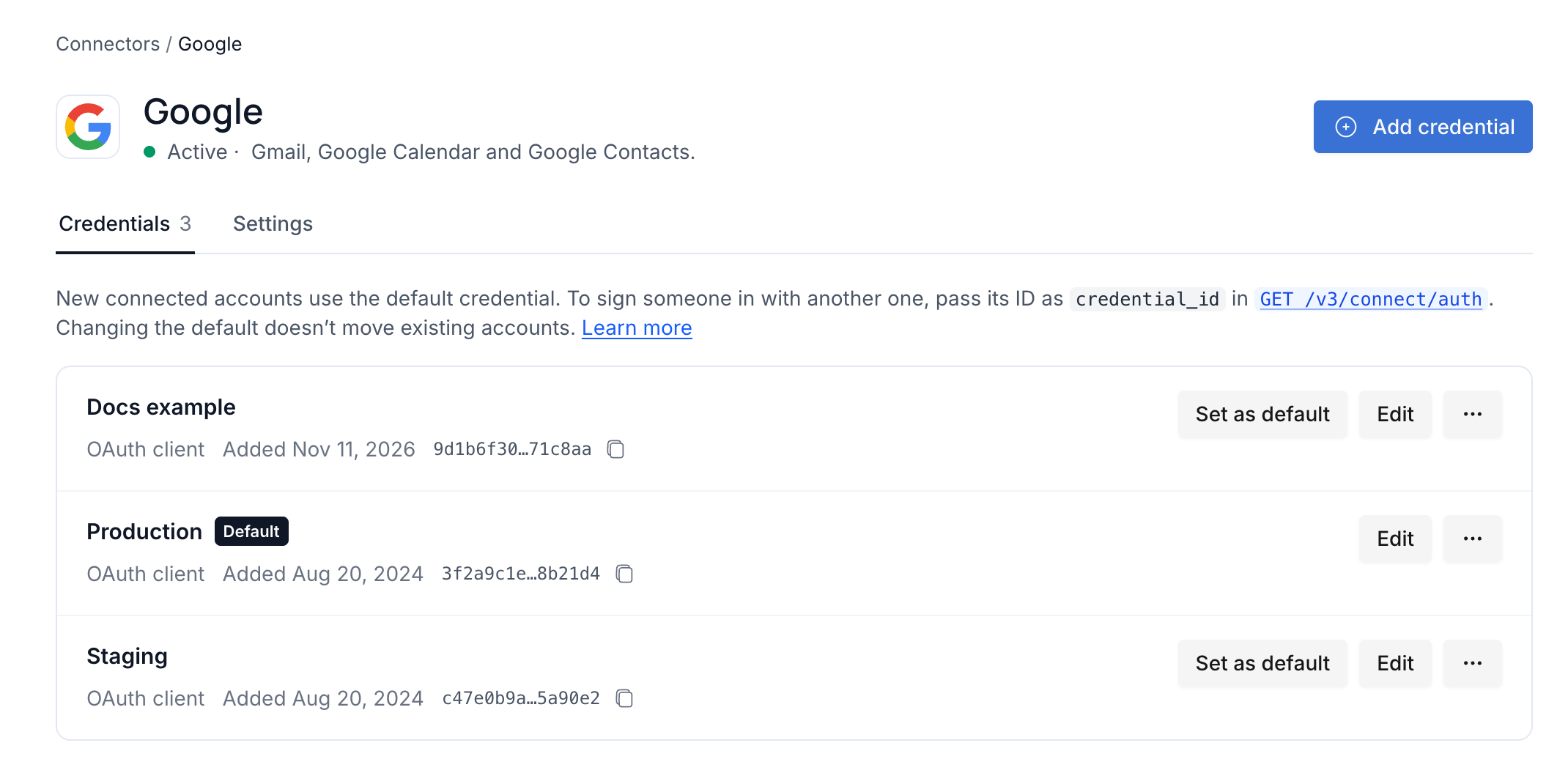
The new credential appears on the connector’s Credentials tab with its ID.
Manage credentials in the Dashboard
Section titled “Manage credentials in the Dashboard”Each credential on the Credentials tab has these actions:
| Action | What it does |
|---|---|
| Set as default | Makes the credential the default for new grants. Existing grants don’t move. |
| Edit | Renames the credential, or replaces its client ID and client secret. The credential ID stays the same. |
| Copy credential ID | Copies the credential_id to use in auth requests. |
| Delete credential | Removes the credential from the connector. |
The connector’s Settings tab holds the scopes that apply to every credential.
Add a credential with the API
Section titled “Add a credential with the API”Make a Create Credential request to add a provider auth app to an existing connector. Set credential_type to connector and put the provider’s client_id and client_secret in credential_data. The response’s data.id is the credential_id.
curl --request POST \ --url 'https://api.us.nylas.com/v3/connectors/<CONNECTOR>/creds' \ --header 'Content-Type: application/json' \ --header 'Accept: application/json' \ --header 'Authorization: Bearer <NYLAS_API_KEY>' \ --data '{ "name": "Google auth app 2", "credential_type": "connector", "credential_data": { "client_id": "<PROVIDER_CLIENT_ID>", "client_secret": "<PROVIDER_CLIENT_SECRET>" } }'To change the default credential, update the connector’s active_credential_id field.
Authenticate users with a specific credential
Section titled “Authenticate users with a specific credential”Pass the credential_id in the auth request. Without it, Nylas uses the connector’s default credential.
Hosted OAuth
Section titled “Hosted OAuth”Add credential_id as a query parameter on the GET /v3/connect/auth request. The rest of the flow doesn’t change: exchange the code with a POST /v3/connect/token request to get the grant ID.
Bring Your Own Authentication
Section titled “Bring Your Own Authentication”Include credential_id in the settings object of the POST /v3/connect/custom request. The grant in the response includes the credential_id it’s associated with.
curl --request POST \ --url 'https://api.us.nylas.com/v3/connect/custom' \ --header 'Content-Type: application/json' \ --header 'Accept: application/json' \ --header 'Authorization: Bearer <NYLAS_API_KEY>' \ --data '{ "provider": "google", "settings": { "credential_id": "<CREDENTIAL_ID>", "refresh_token": "<REFRESH_TOKEN>" } }'Move a grant to another credential
Section titled “Move a grant to another credential”Re-authenticate the user with the new credential_id, using Hosted OAuth or Bring Your Own Authentication. The grant keeps its grant ID and its other information.